> For the complete documentation index, see [llms.txt](https://magverse.gitbook.io/docs/llms.txt). Markdown versions of documentation pages are available by appending `.md` to page URLs; this page is available as [Markdown](https://magverse.gitbook.io/docs/quickstart-merchant/publish-your-docs.md).
# Create Tasks
#### 1. Create Your First Task
After your verification is approved and top-up, go to the merchant dashboard. In the left navigation menu, click **“Tasks & Collaboration”**, then click **“Create New Task”** in the upper-right corner.
In the task creation panel, start by filling in the basic task information, including the task name and task type.
For task naming, it is recommended to follow this format:\
**Brand Name + Task Theme + Platform**
Examples:
* MagVerse New User Task · Twitter
* MagVerse Tutorial Promotion · YouTube
Available task types include: **Post, Video, Article, Livestream, and AMA Interaction**. Your selected task type will affect the curators recommended for your task.
#### 2. Set Reward, Timeline, and Requirements
Next, complete the remaining task settings, including the settlement method, base reward, timeline, and task details.\
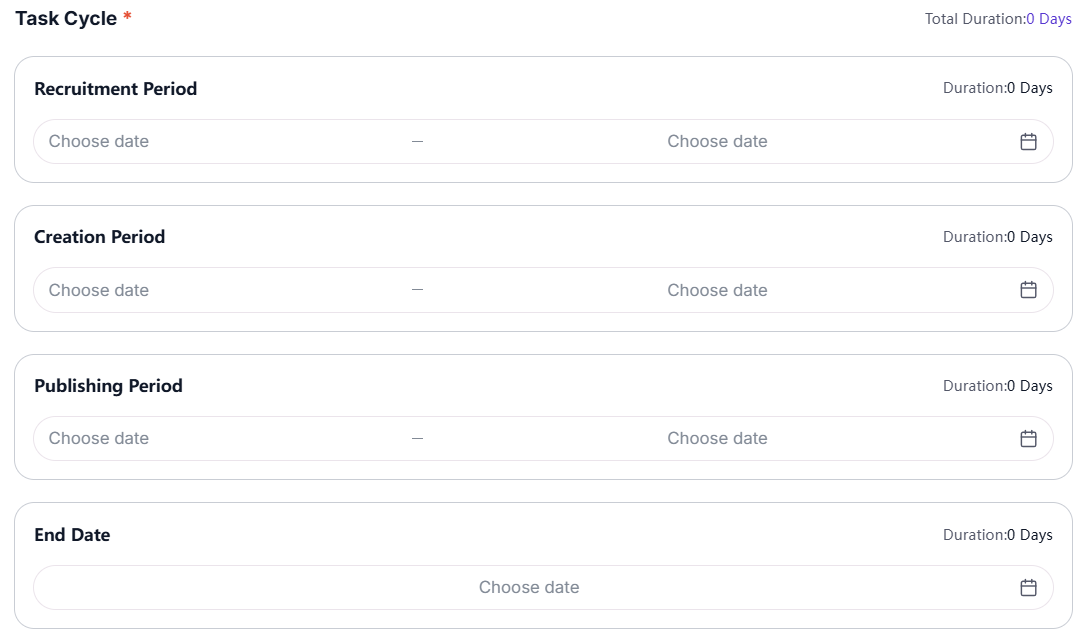
The timeline generally includes three stages:
* **Recruitment Period**: the time window for curator applications, recommended to be at least 2 days;
* **Creation Period**: the time for approved curators to prepare content, recommended to be at least 3 days;
* **Publishing Period**: the window for content publication. Please note that the publishing time cannot be earlier than the end of the creation period. You can leave 2 days for this period.
* After **End Date**, the task result will be presented in the task dashboard and the settlement can be proceeded.
In the task details section, clearly describe your product, task requirements, required materials or copy points, link requirements, prohibited content, and content review standards. You can also enter the number of curators you plan to invite and use AI-assisted generation tools to help complete the task description if needed.
#### 3. Publish and Manage Your Task
Once everything is ready, click **“Create”** in the lower-right corner.\
After publishing, all of your created tasks will appear on the task management page, where you can view and manage them in one place.